Scale VRE Generation Capacity
This section outlines the required inputs and step-by-step procedures for scaling VRE generation capacity in iPool Suite — creating and running a What-If scenario that modifies the maximum output of specific renewable stations.
- Required Inputs
- Step-by-step procedure
- Exercise
What-If Scenarios
Evaluating What-If scenarios is essential for gaining a deeper understanding of market dynamics. By monitoring how a system adjusts to fluctuating variables, analysts can more accurately project price volatility and market trends.
This section covers four primary What-If scenario types:
- Simulating a Unit Outage — Models the market impact of taking a specific generation unit offline
- Increasing System Demand — Scales overall grid demand by a specific multiplier
- Adding Line Constraints — Introduces specific transmission limits using an event file
- Scaling VRE Generation Capacity — Modifies the maximum output of specific renewable stations
The scope of potential What-If simulations is extensive and is not restricted to the primary examples provided above.
Prerequisites
Before running a What-If Scenario, ensure you have the following input files prepared:
- Demand File — A forecasted or historical regional demand profile
- Must-Run Generation File — Forecasted or historical capacity factor data for must-dispatch plants
- Bid Files — The set of bid profiles to be utilized (Historical, Custom, Typical, or Dynamic)
- Event File — Defines the specific constraints or variations applied to the base scenario, such as demand scaling, added generation, or transmission line limits
See Create Event for more information on Event Files, and the Generator page for information on Bid Files.
Step-by-Step Guide
- Phase 1: Scenario Studio Initialization
- Phase 2: Scenario Variations
- Phase 3: Execution and Comparison
Open Dashboard and Navigate to Scenario Studio
Open Dashboard. Navigate to Scenario Studio.
Select a Template
Click Add command. Choose a simulation template (Custom, Day, Week, or Month). For this activity, select Week Simulation.
Seed from Historical
Click Seed from Historical. This will automatically add the generation, demand, and event files from the historical load.
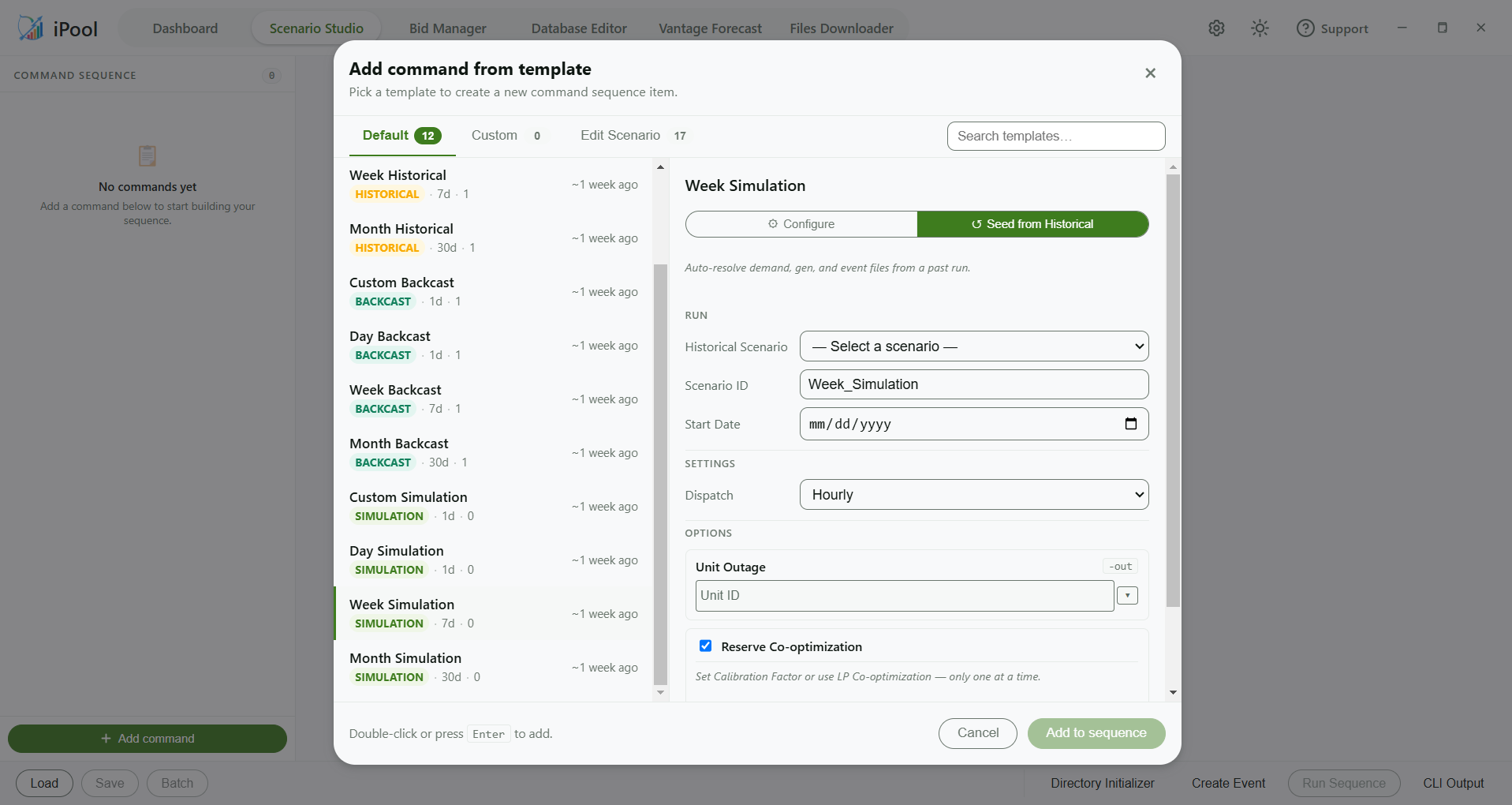
Configure Mode enables full customization of your inputs (e.g., generation, demand, events, and bids).
Select Base
Choose the Historical Scenario as the base.
Set Identifiers
Enter your Scenario ID and Dispatch Type.
Set Calibration Factor
Under Reserve Co-optimization, select Calibration Factor and enter your required value.
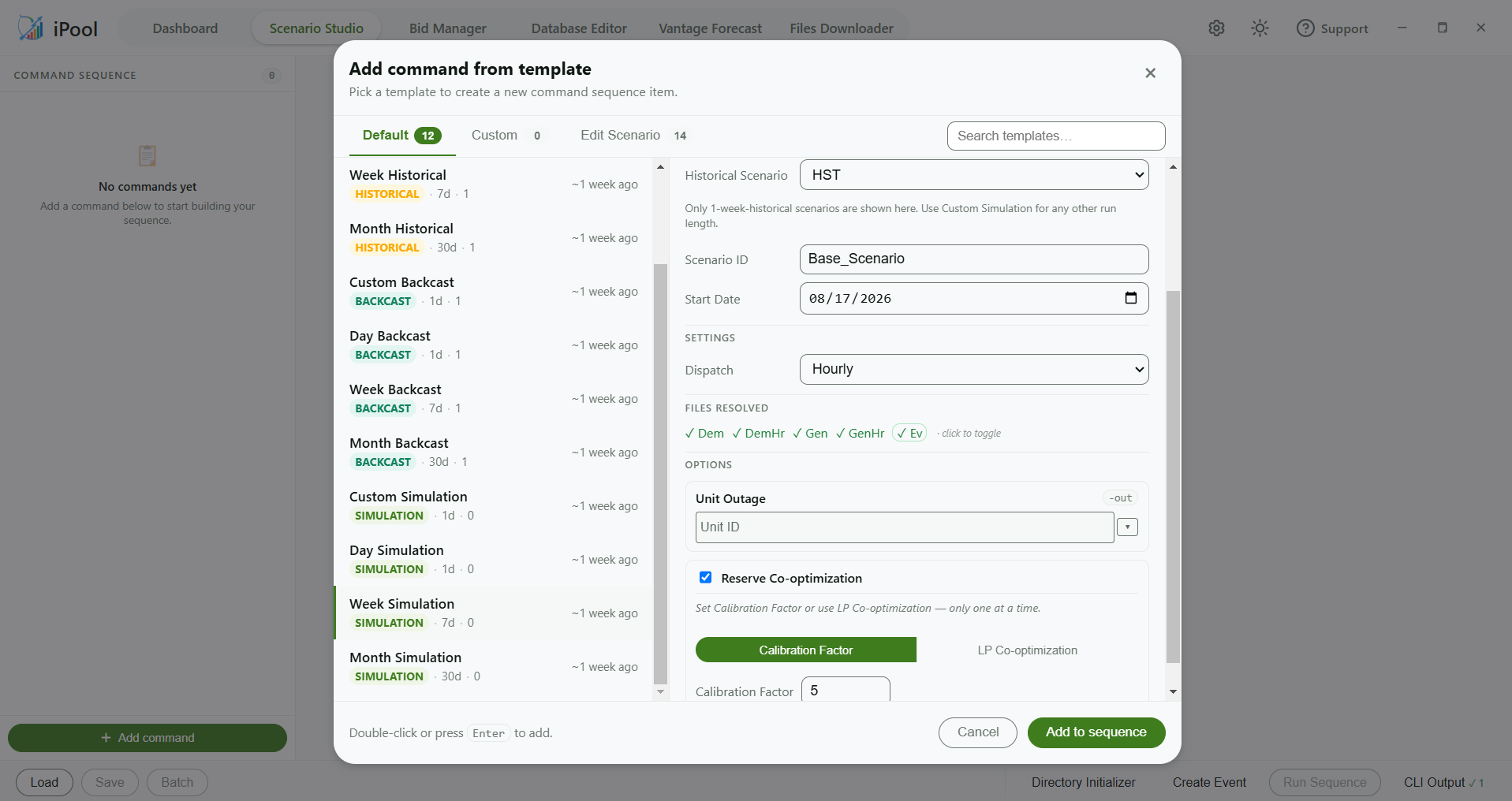
Screenshot shows an earlier version of the UI. The current UI uses the label Calibration Factor.
Backcast and calibration are the basis for determining the correct -pcsr value.
Add to Sequence
Click Add to sequence to lock in your base settings.
Add Bids
In the Bids tab, set Bid Loading Method to Historical Bid Loading. In the Extract outages longer than (hours) field, enter the minimum outage duration threshold — outages lasting longer than this value are extracted from history to supplement bids. Optionally, set Outages of Sites Type to filter by site type.
Create "What-If" Cases
Click the Duplicate button. Be sure to rename the Scenario ID so you can easily identify it later.
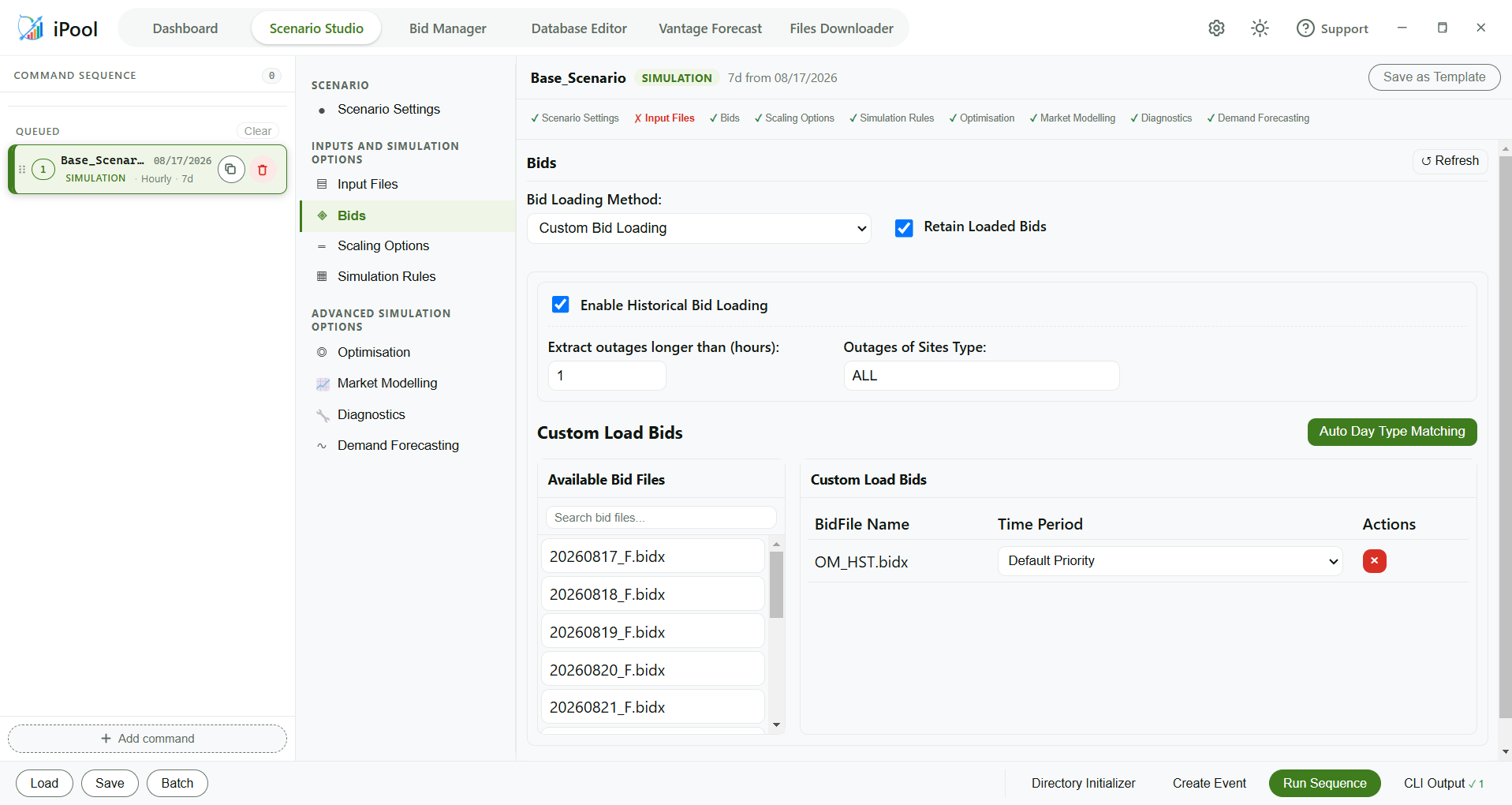
Edit one variation at a time using the modifications outlined below:
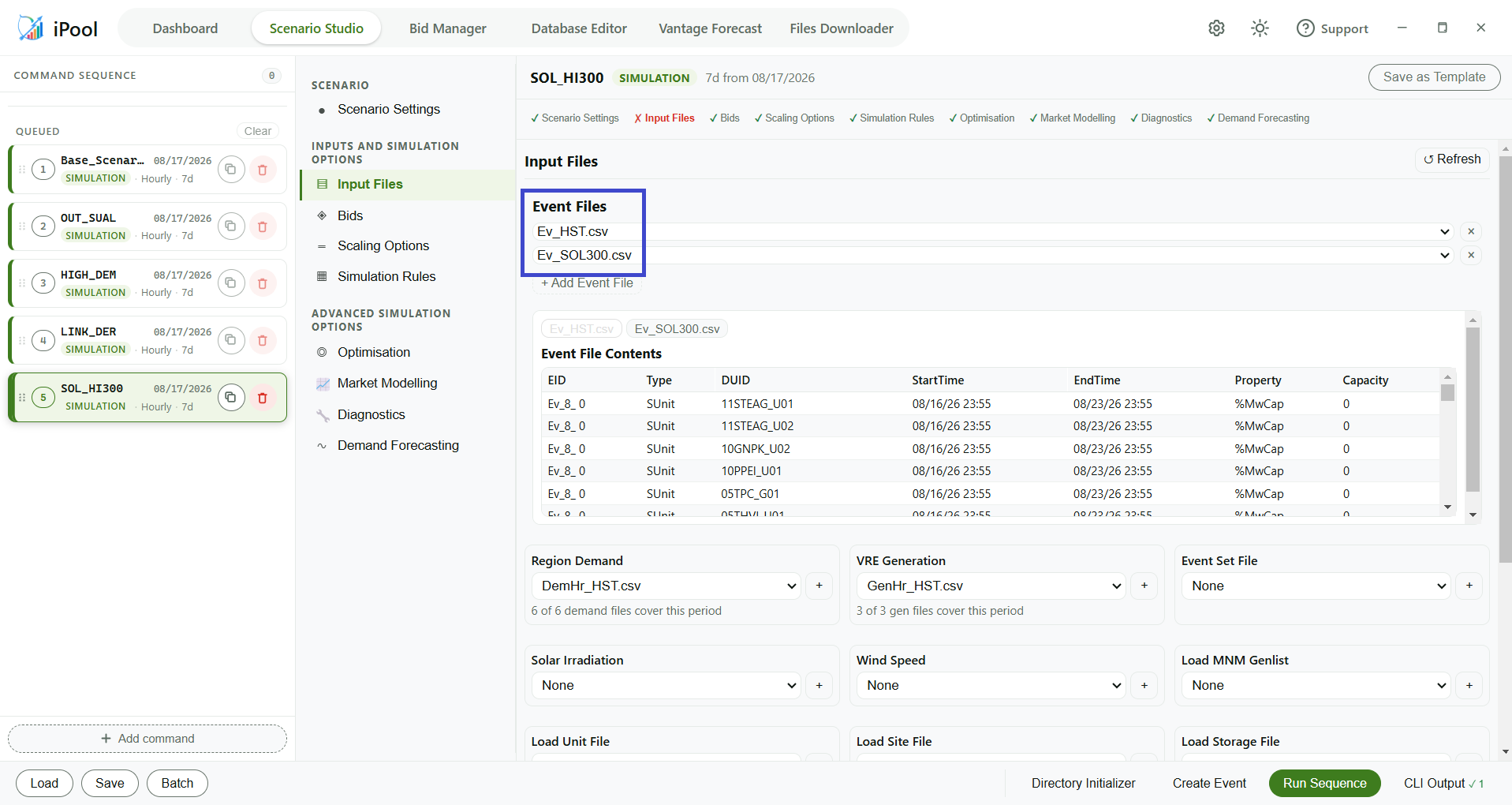
Scaling VRE Generation Capacity (-e Ev_SOL.csv)
- Purpose: Modifies the maximum output of specific renewable stations. For instance, an event file can be used to boost the generation capacity of a site named SOLAR to 105% for the entire scenario duration.
- How to Apply: Go to the Input Files tab, then the Event Files section.
Select the relevant event file (e.g.,
Ev_SOL.csv) from the dropdown menu.
Run Sequence
Click Run Sequence to execute all of your set scenarios.
Analyze and Visualize
Once execution is complete, use Dashboard's visualization tools to review the data:
- Comparison View — Compare regional prices, generation mix, and demand across all variations.
- Link View — Examine how different constraints or outages impact inter-regional power transfers.
- Fuel Stack — Break down results by fuel and technology type to analyze generation contributions.
Exercise
Give it a try and do this exercise:
Step 1 of 4
Initialize Scenario Studio